Viewing a Pickup Record
The Kit Pickup fulfillment type is available on the Fulfillment Orders page in the Logistics Portal. When a pickup order is received from the Care Team Portal, the order is saved to the Fulfillment Orders page.
Note: The previous Patient Kit Pickup page was removed from the Logistics menu as this data is now on the Fulfillment Orders List page.
The Fulfillment Orders List page has a filter for Kit Pickup fulfillment type and columns for Notes, Pickup Info Updated, Carrier Escalation #, Received Date, Preferred Pickup Date, Scheduled Pickup 1 to 4, Final Pickup Attempt, Pickup Date, and SLA.
Viewing a Pickup Record on the Fulfillment Orders Page
- In the menu, click Logistics > Fulfillment Orders or click the Fulfillment Orders tab.
The Fulfillment Orders page appears.
- In the Search By box, type the record number, status, or other identifying information. For more information about search options and keywords, see Searching, Filtering, and Sorting on the Fulfillment Orders List page. You can also filter the list by Kit Pickup Fulfillment Type to only show those records in the list.
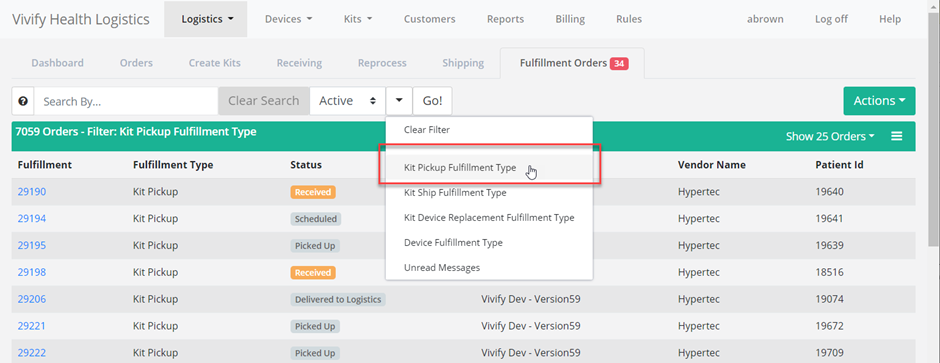
- In the Fulfillment column, click the number to open the Fulfillment Detail page.
The Fulfillment Details page appears.
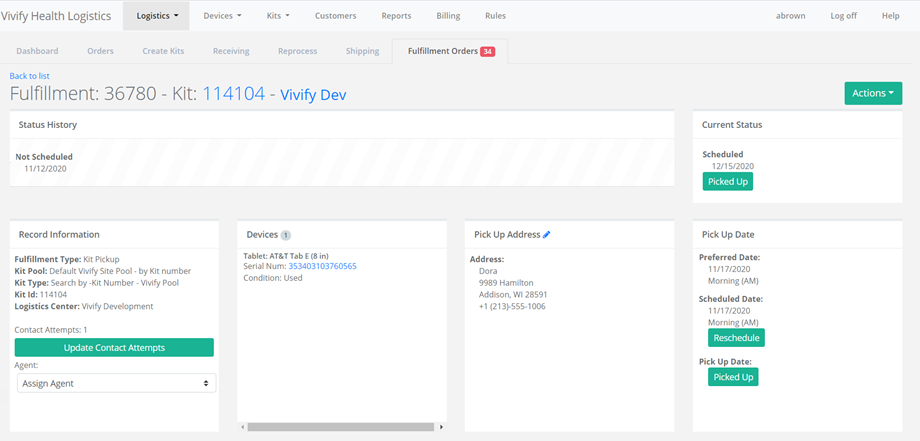
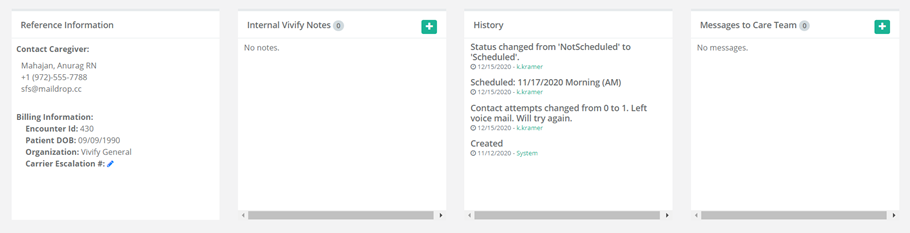
- Depending on the current status of the record, you can Update Contact Attempts, Schedule a Pickup Date, or record a Picked Up date. You can also send messages to the Care Team regarding this record, if needed.
This page includes sections for the following information:
- Status History and Current Status: Status History shows the progress the order has completed through the various states, including the date of transition. Current Status shows the date the order entered into its current status and gives an option to process the order to the next step in the workflow. The following status types are supported: Ordered, In Progress, Shipped, Delivered to Patient, Delivered to Customer, Delivered to Logistics, Called, Scheduled, Picked Up, Received, Complete, Canceled, On Hold. Each status has a button that allows you to move the record to the next step in the process. When a record is placed in On Hold status, the Resume button can be used to move the record back to the previous status.
- Devices: Lists the type of device that has been requested to be replaced and includes the old and new model and serial number. Clicking the device serial number opens the Device details page where you can view the history of the device and other information. The Replacement Device section only appears in records with the Fulfillment Type of Kit and Kit Device Replacement.
- Pick Up Address: Lists the address, language, and tracking number for the order. Clicking the tracking number opens the FedEx site.
- Pick Up Date: Shows the retrieval dates of the old device and the Scheduled Date and Pick Up Date, with options to reschedule and mark as picked up (if the order has shipped).
- Reference Information: Includes Contact Caregiver and Billing Information (Encounter ID, Patient DOB, Organization, Carrier Escalation).
- Internal Vivify Notes: Comments or information about the order.
- History: History information related to the current fulfillment record, including status changes, pick up dates and times, and any changes made to the order information.
- Messages to Care Team: Allows the Logistics User to send messages to the Care Team regarding the order. The messages are visible in the Care Team Portal on the Ship/Pickup page.
 Yes
Yes  No
No